
LSTAR has determined that many members were automatically authenticated into the BrokerBay/Supra One system and therefore are not fully aware they have subscribed. Due to this, the system has automatically assigned a PIN instead of letting members choose their own.
Because of this, many members don’t know that there is a specific BrokerBay/Supra One PIN and are using their old Supra PIN, which won’t work.
Please follow the instructions on how to find your PIN:
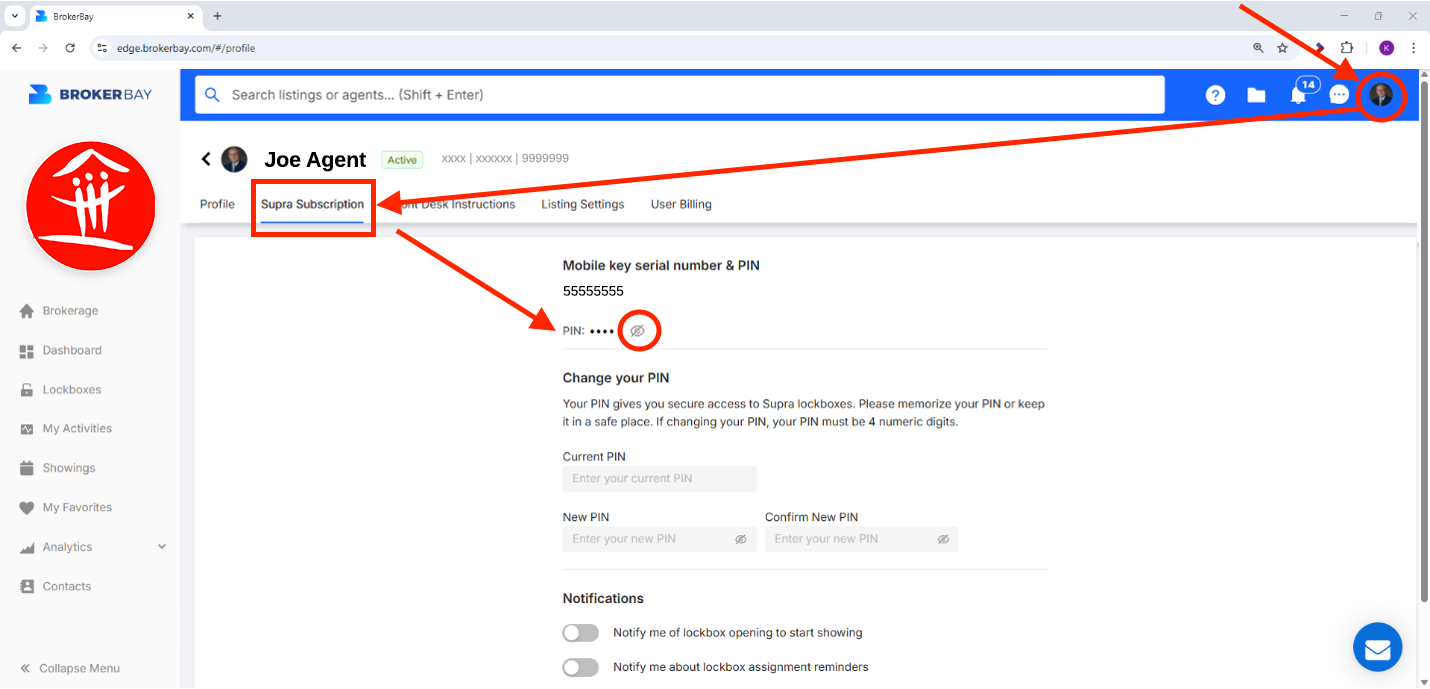
Follow these steps to find your PIN on the WEB VERSION of BrokerBay:
- Click your profile icon – top right-hand corner.
- Click “Account Settings”
- Under your name, click “Supra Subscription”
- Your PIN will appear at the top of the page. Click the “EYE” icon to view the PIN.
Do You Want to Change Your PIN?
- Follow the steps above to find your PIN.
- There will be a “Change your PIN” option.
To Change Your PIN on the App:
- Tap the User icon – top right
- Tap “Account Settings”
- Tap “Change PIN”
- Can’t remember your PIN? Tap “Forgot PIN”
Trying to Setup Showing Configurations
If you are having issues with setting up showing configurations and assigning a lockbox to a listing. Open the lockbox first to fix any syncing issues and then complete your showing configurations.
Support
If you are still having issues, please call the Supra One Help Desk
- 1-877-699-6787
8 am to 10 pm ET, 7 days a week excluding U.S. holidays - Email support [at] brokerbay.com (support[at]brokerbay[dot]com)