UPDATE: Cumulative Days on Market (CDOM)
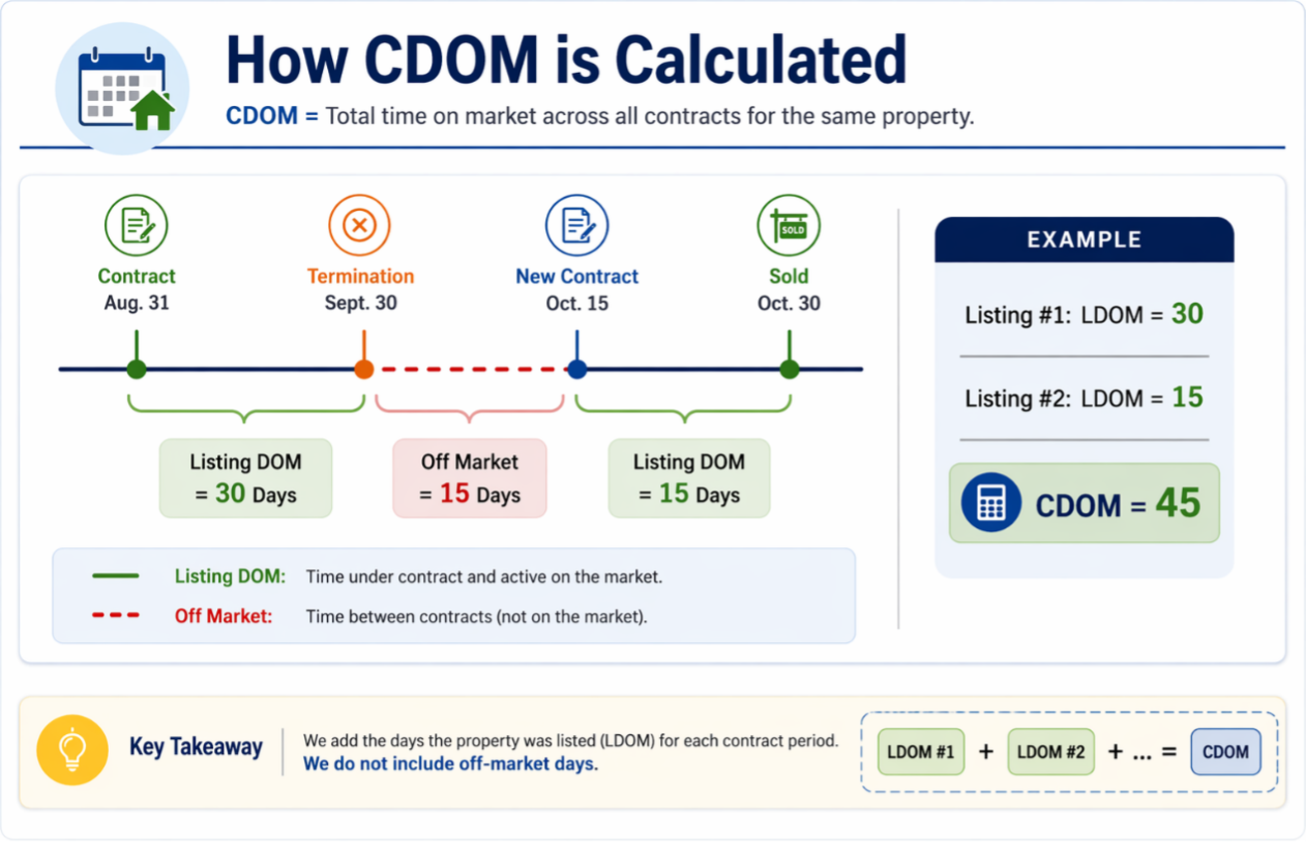
Cumulative Days on Market (CDOM) shows the total number of days a property has been listed and available for public viewing.
Why does CDOM matter?
CDOM gives you a clearer picture of a property’s listing history in Matrix™ and REALM®. This new field shows how long a property has been on the market across related listings, helping you better understand market activity and support informed pricing, offer, and client conversations.
CDOM supports transparency by providing a more complete view of time on market—even when a listing has been cancelled and relisted. This helps members make more informed decisions with greater confidence.
What about historical listings?
With CDOM going live, you will not see it appear on historical listings. CDOM is calculated for new listings going forward and will only begin accumulating from the date the feature is introduced which was Tuesday, July 28th, 2026.
Where will CDOM appear in the MLS® Systems?
CDOM will appear on the History tab in Matrix™ and in Member Full listing details in REALM®.
When adding the CDOM field to your results display in Matrix, be sure to search for "Cumulative Days on Market" when adding the column, rather than simply searching for "CDOM". In REALM, either "CDOM" or "Cumulative Days on Market" can be used to locate and add the field.
When does CDOM reset to zero?
If the property is off market for 30 days or more, the CDOM count will stop. CDOM will not carry over if the property class (sale vs lease) or property type changes.
What if the property is listed with a new company or REALTOR®?
If the listing changes companies or listing agents, the CDOM will not reset; it is not about who advertises the listing, it’s about the listing itself being advertised.
UPDATE: Room Dimensions Entry Fields in Metres or Feet & Inches
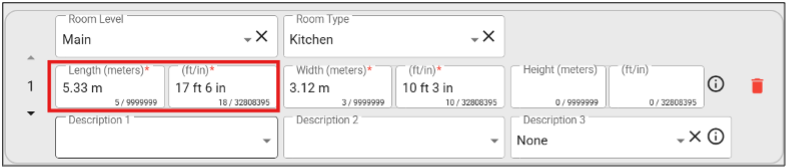
Users will see updated Room dimension entry fields in Add/Edit that will allow you to enter measurements in either metres OR feet and inches, as shown below.
As you type, an instant conversion will appear to help you validate your measurements.
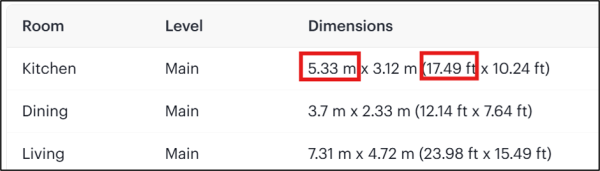
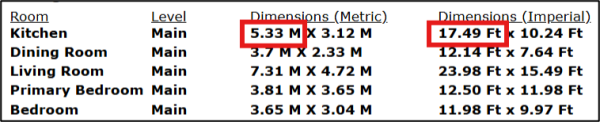
Please note that when using imperial measurements, values are entered in feet and inches but displayed in feet only. As a result, the total will be rounded to the nearest two decimal places.
For example:
5.33 m = 17′ 6″ = 17.49 ft
Example: To enter the room dimensions in feet and inches in Add/Edit, for a room measuring 11 ft 2 in, enter 11/2.
Matrix™:
REALM®: