
Enhanced automated email notifications in REALM® will help you keep clients informed with timely active and sold listing updates.
You can now send clients updates from saved searches daily or in real time for 90 days and extend the notifications as needed. Clients can access listings directly from their email but must sign in to REALM® to view sold prices.
Note: Cotality will be releasing similar functionality for Matrix™ later this year.
Watch this short video for an overview of how the feature works.
How to Set Up a Saved Search and Email Notifications
Click Search.
- Choose a search location or draw a map shape.
- Complete the following fields:
• Sale or Lease: Select Sale or Lease.
• Availability: Select Available.
• Class: Select Freehold, Condo, or Commercial.
• Type: Select any type.
• List Price: Select any range.
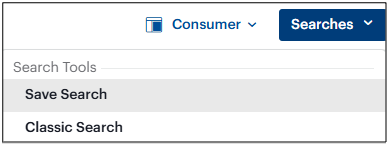
- Click Searches, then select Save Search.
- Complete the following fields:
• Search Name
• Save For
• Notifications for Me
• Notifications for My Client
• Optional: Enter additional email addresses. Additional recipients will receive email notifications but cannot view sold prices unless they sign in to REALM®.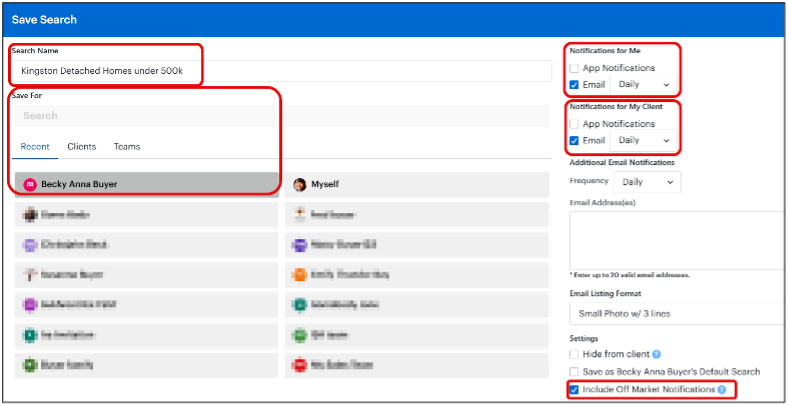
Important: You cannot set up email notifications for searches that:
• Include salesperson-only fields, such as Last Update; or
• Have the Unavailable option selected.
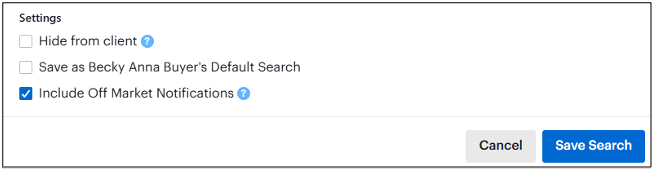
- Under Settings, select Include Off-Market Notifications to receive email alerts for:
• New listings
• Listing status changes (Price Change, Extensions, Sold Conditionals)
• Sold or leased listings
- Click Save Search.
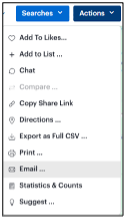
- Click Actions, then select Email to send the first batch of listing matches.
- Complete the following fields:
a. To:
b. Subject: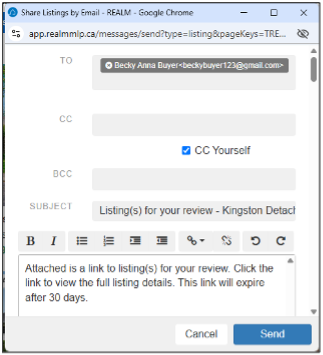
- Click Send. You can send up to 100 listings at a time.
To review email notifications from the client’s perspective:
- Open the email notification from REALM®. The email includes links to active and sold listing updates.
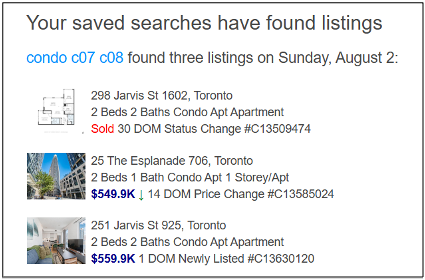
- Click the active listing thumbnail to review the listing details.
- Click the sold listing thumbnail to review the listing details.
- Click Log in to view to sign in to REALM®. REALM® will prompt recipients without an account to register.
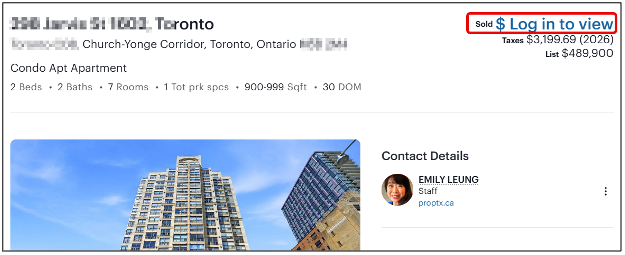
To review all saved search results from the client’s perspective:
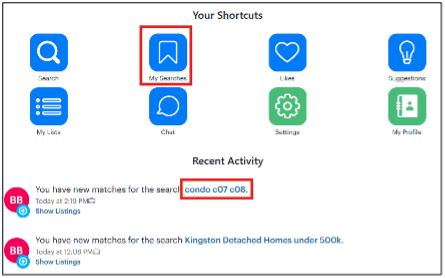
- Login to REALM®.
- From the Dashboard page, click a saved search. Saved searches can also be found via the My Searches icon.
- Click the Results tab to review active listings.
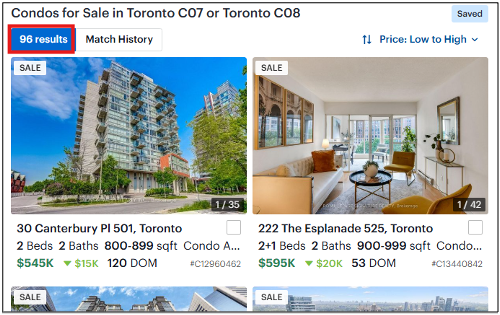
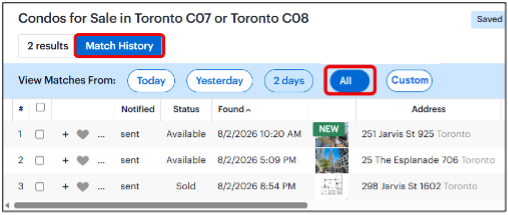
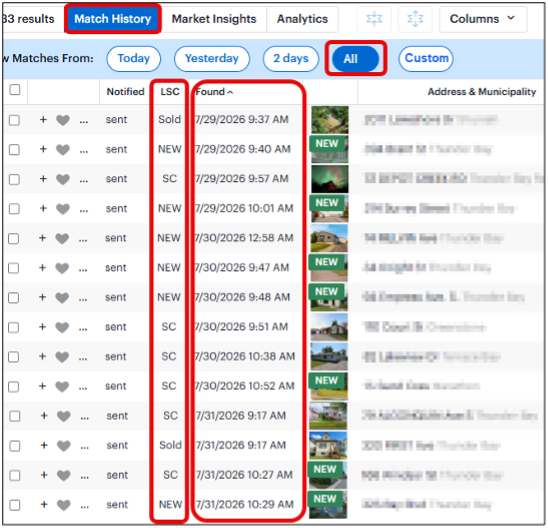
- Click the Match History tab to review sent listing notification emails. The default view is All and can be sorted by Date, Status, or Address.
To update an existing saved search to include sold notifications:
- Click Contacts.
- On the right-hand menu, click any existing contact to view their profile.
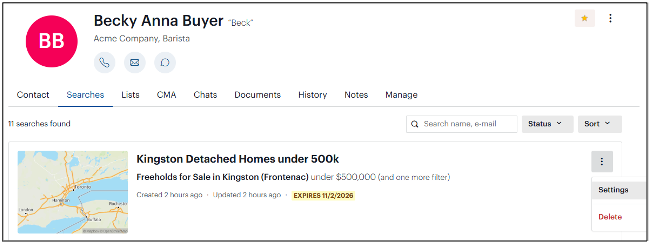
- Click the Searches tab.
- Click the three dots beside any search, then select Settings.
- Under Settings, select Include Off-Market Notifications, then click Save Search.
Note: Periodically review active listings and previously emailed notifications by opening the saved search and using the Results and Match History tabs.
To review saved search results and email notification history from your account:
- Click Contacts.
- Click a client’s name, then click Searches.
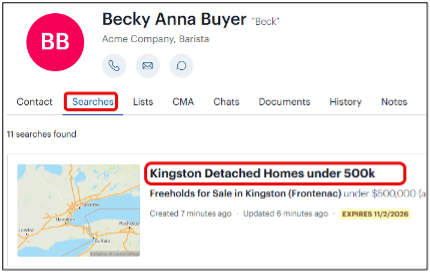
- Click a saved search.
- Use the Results tab to view active listings in Consumer, Map, or Table view.
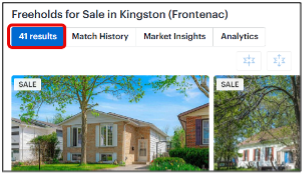
- Click the Match History tab to review sent listing notification emails. The default view is All, and you can sort by Date, Last Status Change, or Address.
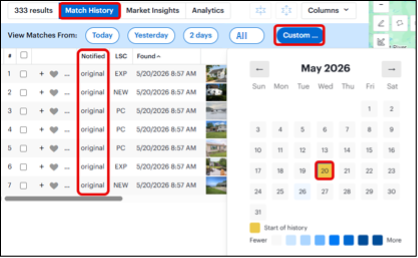
- Click Custom, then select the Start of History date (highlighted in yellow) to review the original listings REALM® identified on the first day of the search. When any of these listings change, REALM® will notify the client by email.
Need Help?
Contact the PropTx Help Desk:
- Email: support [at] proptx.ca (support[at]proptx[dot]ca)
- Phone: 416-443-8199